Building Energy Simulation
The building energy simulation generated by the Asset Scoring Tool evaluates the physical characteristics of a building "as built" and its overall energy efficiency independent of its occupancy and operational choices (building use schedules and plug loads). The energy model takes into account the building envelope, the mechanical and electrical systems, and other major energy-using equipment that is built into the building.
The primary modeling output of the Asset Scoring Tool is site energy use intensity (EUI). Asset Score calculates a current EUI based on your building's existing characteristics, and a proposed EUI based on measures recommended by the recommendation engine, so you can compare the two and gauge the building's savings potential from a retrofit.
The simulation output, as displayed in an online summary page and a downloadable energy performance report, will show the current and proposed site EUI for the building along with the measures used to calculate the proposed value.
Run your building simulation
Review
Before running the simulation for your building, perform a final review of all building data entered into the tool:
- Select the Building Info icon on the asset score toolbar to view a summary of your building data.
Note: Assets are grouped according to the building blocks they were assigned to. Select the block name from the links on the Building Info page to display. - Review EACH of the building components for EACH of the blocks you have created to make sure that you don't need to make any changes.
Note: A yellow warning symbol on a toolbar icon or on the Building Info page indicates that section is either missing required information or has a problem with data already entered.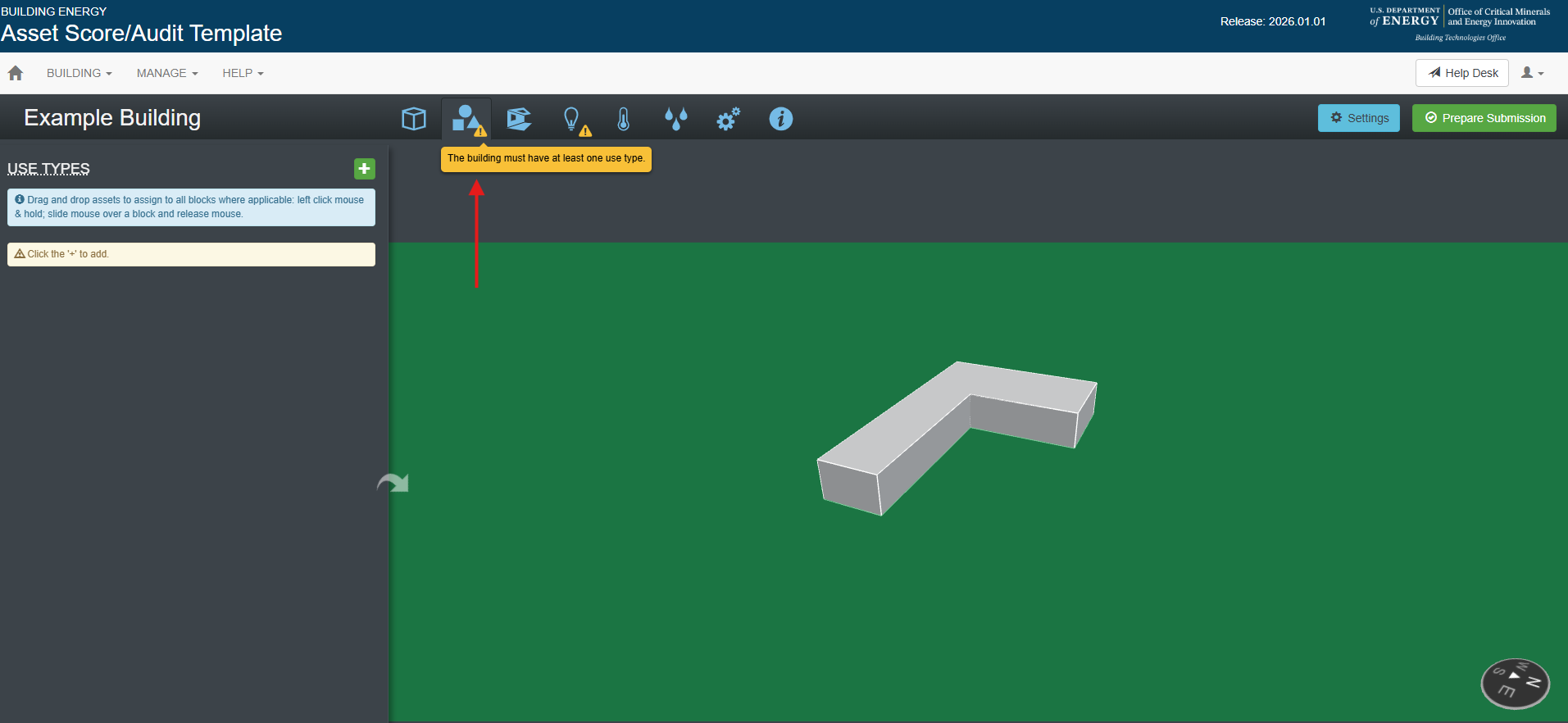
- Go back and make changes to your inputs if needed.
Submit
When your building is complete, you can select retrofit measures and submit your building for simulation:
- Select the green Prepare Submission button found on the top right of the Building Project workspace. This opens the "Select Retrofit Measures for Submission" popup.
- Review the measures recommended by the recommendation engine for your building. Select any measure to learn more about it.
- Select the measures you would like to include in the proposed simulation.
- Select the green "Submit Building" button at the bottom of the screen.
- A system notice should appear indicating that your building has been submitted, and that you should receive an email notification when your results are ready.
- Select the green Back to My Buildings icon to return to My Buildings.
View your results
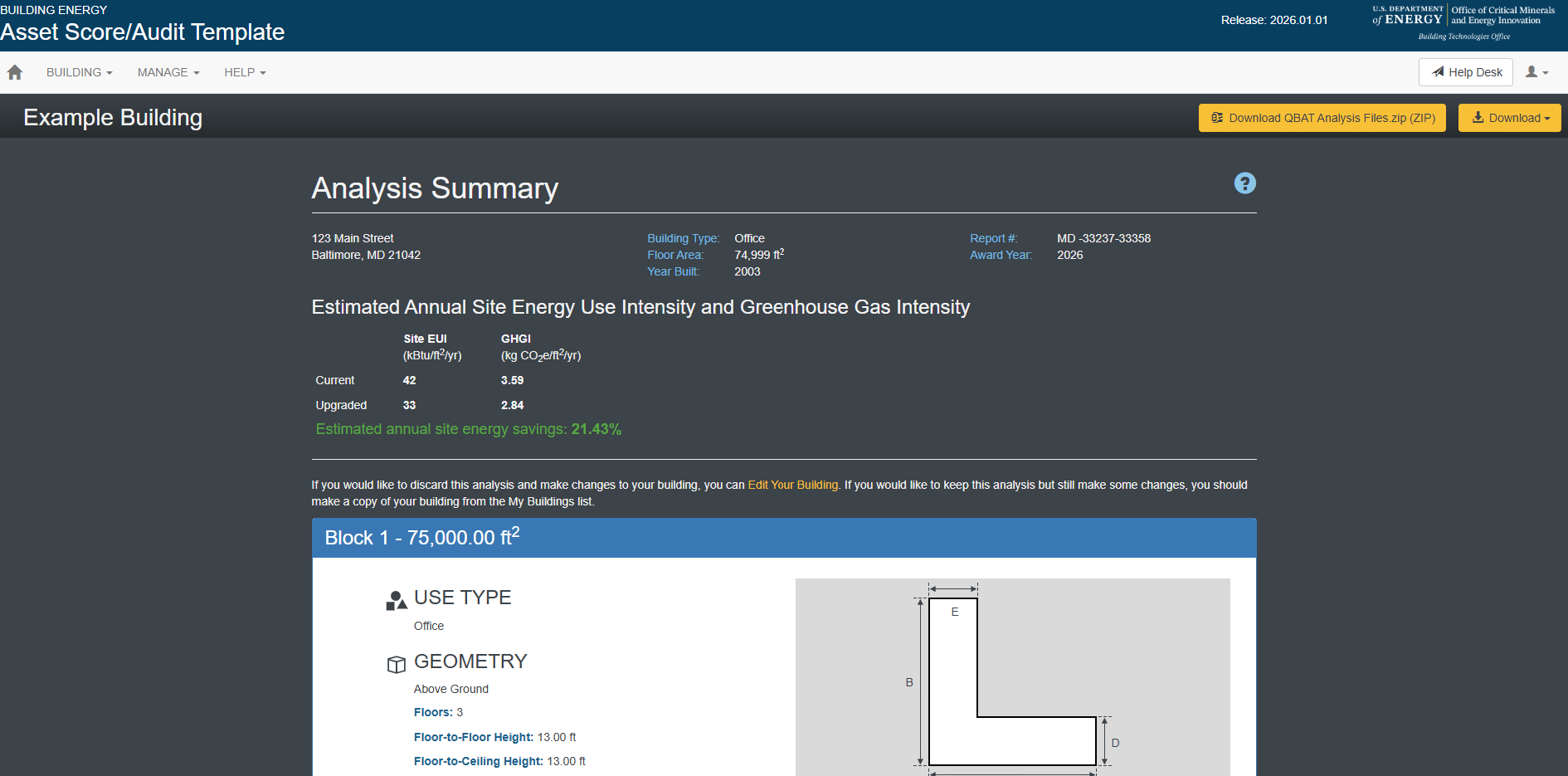
Once a simulation is complete, the Status of your building that is available on the My Buildings table will be listed as 'Rated,' indicating that the building has been simulated and is available for review. Click the building link to view a summary page that includes the current and proposed site EUI for your building. The summary screen also includes the inputs you used to create your building.
Download your results
Select the yellow Download icon, and select 'Download Report' to open a detailed energy performance report in PDF file format to view and/or download. The energy performance report guide can be used to help interpret your results.
Select the yellow Download icon, and select either of the two 'Download OSM Model' options to open an OpenStudio Model (.osm) file to view and/or download for use in other applications.
Was this article helpful?
That’s Great!
Thank you for your feedback
Sorry! We couldn't be helpful
Thank you for your feedback
Feedback sent
We appreciate your effort and will try to fix the article